

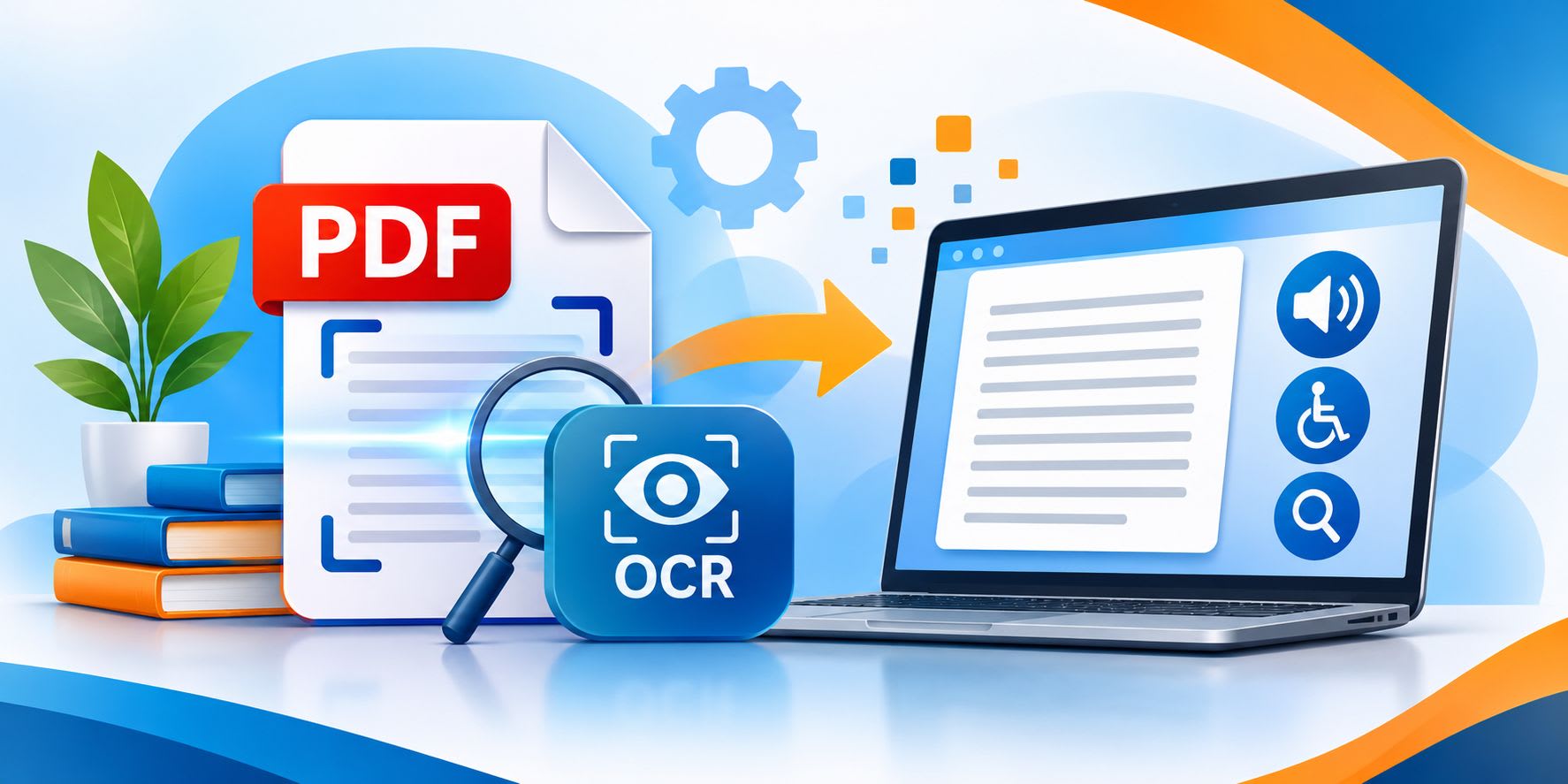
How to Make Official PDF Documents Accessible With OCR
To make official PDF documents accessible, run OCR on any scanned pages so the text becomes real, selectable characters, then add tags and set a logical reading order so screen readers announce content correctly. Adobe Acrobat's free online OCR tool handles the first step in a browser, turning scanned PDFs into searchable files you can download after signing in.
This guide is for staff who publish official documents, such as forms, notices, and reports, and need people who use screen readers to be able to read them.
HTML, PDF, or OCR: Which Source Format Makes Accessible Documents Work With a Screen Reader?
The best source format is the one you can structure before you publish. HTML is usually the most accessible choice because headings, lists, tables, and image descriptions live in the markup that screen readers already navigate. A PDF can be just as accessible, but only when it is tagged. Tags tell a screen reader which text is a heading, which is a list item, and in what order to read the page. A scanned PDF is the weakest starting point because each page is a picture with no text in it at all. OCR fixes that by converting the image into machine-readable text that a screen reader can speak. OCR does not add tags or a reading order, so a scanned official document needs OCR first and tagging second.
What each starting point needs before it works with a screen reader:
- Word or HTML source file: Add heading styles, alt text, and table header rows in the source, then export. A well-structured source carries that structure into the PDF as tags, which is why accessibility guides recommend fixing problems in the source first.
- Digital PDF without tags: The text is already real, but the structure is missing. Tags and reading order have to be added and checked in a PDF editor such as Adobe Acrobat Pro.
- Scanned or image-only PDF: Apply OCR to recognize the text, then add tags, then check reading order. Skipping OCR leaves a screen reader with nothing to announce.
The Adobe Acrobat online OCR tool covers the scanned-PDF step without installing software. It runs in browsers such as Chrome and Edge, processes multi-page PDFs, and recognizes text in English, German, Spanish, French, Portuguese, and other languages. Adobe deletes uploaded files unless you sign in to save them. The free online tool works on PDFs; recognizing text in image files such as JPG, PNG, and TIFF requires Adobe Acrobat Pro, which offers a 7-day free trial.
How Does the Official Adobe Acrobat Accessibility Checker Review PDF Tags and Reading Order?
Adobe Acrobat Pro includes Adobe's official accessibility checker, and it is the main PDF option alongside PAC, axesCheck, ABBYY FineReader PDF, and the checker in Microsoft Word for source files. Acrobat's checker tests a PDF against rules grouped into seven categories: Document, Page Content, Forms, Alternate Text, Tables, Lists, and Headings. It confirms whether the file is tagged, whether it is an image-only PDF, whether a title and language are set, and whether figures have alternate text. Each rule is marked Passed, Failed, Needs Manual Check, or Skipped. Two items always need a person: logical reading order and color contrast. The checker can tell that tags exist, but not whether they are correct, so you verify reading order yourself by comparing the tag sequence with the way a sighted reader moves through the page.
What the checker is looking at:
- Tags: A structure tree that labels headings, paragraphs, lists, tables, and figures so a screen reader can announce them and let users jump between them.
- Reading order: The sequence a screen reader follows. Multi-column layouts, sidebars, and text boxes are the usual places where this goes wrong.
- Artifacts: Decorative content, including repeated headers and footers, should be marked as artifacts so a screen reader skips it.
- Image-only content: A scanned page fails this rule until OCR has been applied.
The free Acrobat Reader supports accessible reading of PDFs, but editing tags and reading order requires Acrobat Pro. Running the checker is a starting point, not a final pass: after fixing every Failed rule, listen to the document once with a screen reader such as NVDA, JAWS, or VoiceOver.
Platform | Best For | Key Details |
Adobe Acrobat online OCR | Making scanned PDFs searchable in a browser | Free for PDFs, no install; sign in to download the result |
Adobe Acrobat Pro | Checking and fixing tags and reading order | Official accessibility checker with seven rule categories; tag and reading order editing; 7-day free trial |
ABBYY FineReader PDF | OCR for large batches of scanned files | Saves recognized documents as tagged PDF or PDF/UA; Windows and Mac versions |
PAC (PDF Accessibility Checker) | Free PDF/UA and WCAG testing | Free, Windows only; Matterhorn Protocol checks, screen reader preview, tag tree view |
axesCheck | Checking PDFs online, including on a Mac | Online checker from axes4, the developer of PAC |
Microsoft Word | Fixing accessibility in the source file | Built-in Accessibility Checker that sorts issues into errors, warnings, and tips |
How Do You Use the Official Accessibility Checker in Word Documents for Screen Readers?
Microsoft's official Accessibility Checker is a free tool built into Word on Windows, Mac, and the web. It scans a document against a set of rules, sorts what it finds into errors, warnings, and tips, explains why each issue matters, and suggests a fix. Errors cover content that is very difficult or impossible for people with disabilities to use, such as images without alt text, tables without a header row, form fields without titles, and permission settings that block screen readers from reading the file. Warnings cover issues like low text contrast and tables with merged or split cells. Tips flag improvements such as using heading styles. Fixing these issues in Word before you save as PDF is faster than repairing tags in the PDF afterward.
The Word rules that matter most for screen reader users:
- Alt text on images and objects: Screen readers speak the alt text aloud, so it should describe the image's purpose, not repeat a file name.
- Table header rows: Screen readers use the header row to tell users where they are in a table and what each cell means.
- Simple table structure: Tables with no merged, split, or nested cells are easier to move through by keyboard and screen reader.
- Heading styles: Real heading styles, rather than bold or enlarged text, give screen reader users a way to jump between sections.
- Unrestricted access: Rights management settings can stop assistive technology from reading the document at all.
The checker has limits. It does not detect information conveyed by color alone, and it lists alt text that Word generated automatically so you can review it for accuracy. A clean result in Word followed by a check in Acrobat Pro after export covers both the source and the final PDF.
Frequently Asked Questions
How can you tell if an official PDF is scanned?
Try to select or highlight a line of text. If you cannot select it, the page is almost certainly a scanned image with no recognized text, and a screen reader will find nothing to read. Applying OCR to the file makes the text searchable and selectable. In Acrobat Pro, the accessibility checker also flags this problem through its image-only PDF rule, which fails until text recognition has been run on the document.
Why didn't OCR recognize all the text in a scanned document?
Poor image quality, unusual fonts, and handwriting are the most common reasons OCR misses or misreads text. Rescanning the original at a higher resolution and with even lighting usually improves accuracy. For official documents, proofread the recognized text against the original before tagging, because a screen reader will read any OCR errors aloud exactly as they appear, including wrong numbers in dates, amounts, or reference codes.
Can OCR text be read aloud or converted to Braille?
Yes. Once OCR has turned a scanned page into machine-readable text, that text can be read aloud by a screen reader or converted to Braille through adaptive technologies such as refreshable Braille displays. This is what makes OCR the necessary first step for older official records, signed forms, and other paper documents that only exist as scans.
The short answer: recognize the text with OCR, tag the PDF and set its reading order, then confirm the result with an official accessibility checker.
Want to publish a guest post on aamax.co?
Place an order for a guest post or link insertion today.
Place an Order